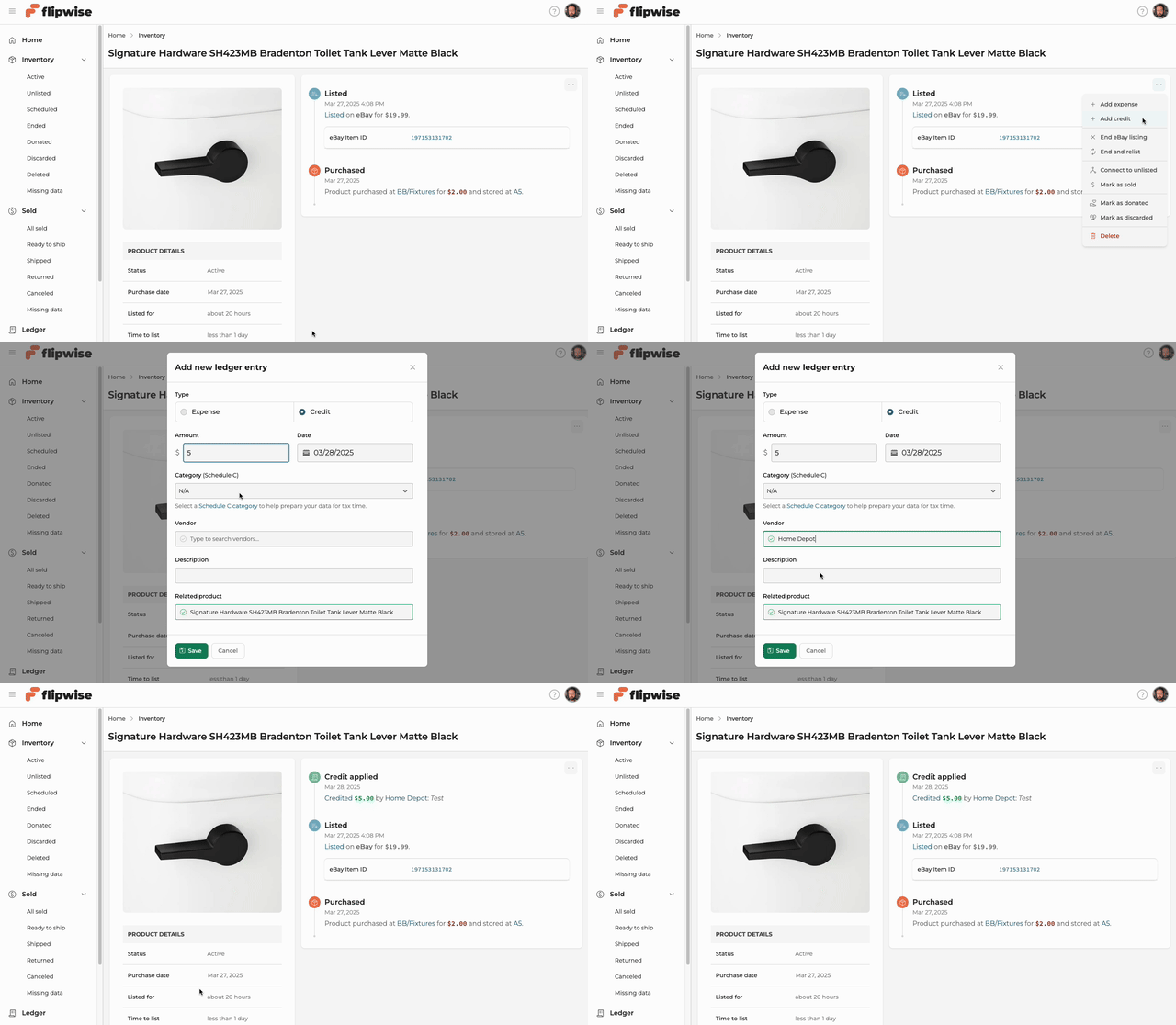
How to add a credit or expense to an order in Flipwise
Sometimes, an order isn’t just what the buyer paid—it may involve additional expenses like specialty box or a credit like a refund check from a shipping carrier due to damage. Flipwise makes it easy to track those details so you can get an accurate picture of your true net profit.
These adjustments are important to log because they directly impact your bottom line. For instance, if a carrier issues you a $12 reimbursement for a damaged item you already refunded to the buyer, adding that $12 credit to the order in Flipwise will reflect the true cost of the issue and improve the accuracy of your profit reporting. Or if you had to buy a battery for a camera you listed that didn't come with one, you can log that additional expense so you know your true net profit when it sells.
Adding a credit or an expense is easy:
- Open Flipwise, and find the item you want to add an expense or credit to
- Click into the item detail page
- Look for the three-dot "action" button on the top right
- Click Add credit or Add expense depending on which you are adding
- Fill out all necessary details
This will add an expense or credit to your Ledger, and associate it with the item in your inventory.