How do I use a CSV file?
Whenever you export data from Flipwise, or download your Income Statement or Tax Report, you will get your data in the form of a .zip file. The zip file must be opened to extract the actual files that contain your data. The format of these files is called CSV, and it is designed to organize large amounts of data.. CSV stands for Comma-Separated Values, and it is a text-only format that is easy for many types of software applications to read and process. Here is what a CSV file looks like in it's raw format:
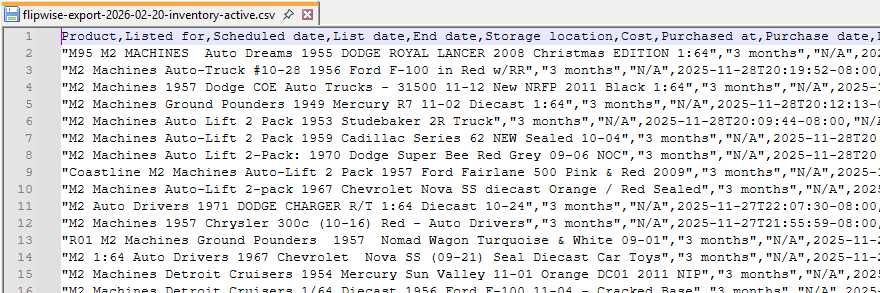
You can see that the top row contains all of the headers for the data table, and then each row contains the information about a single unit of data, whether that is an Active or Sold Listing, a Ledger Expense, or some other data point. Each of the values for that row of data is separated by a comma.
Opening CSV Files in Excel
The most common way to read a CSV file is in a spreadsheet program like Excel. Excel will read in the text data and split everything into nice rows and columns to make it easier to understand. If you want to open a CSV file in Excel, usually it is just as easy as double clicking on the file. If the CSV file format is associated with Excel, this will simply open the file in Excel with everything formatted correctly.
You can also import the CSV data into Excel directly, using the following method:
- Open Excel and create a new Blank Workbook.
- Click the Data tab, then where it says "Get & Transform Data", click "From Text/CSV"
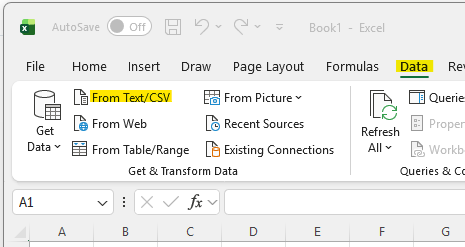
- Browse to the CSV file, select it and click "Import".
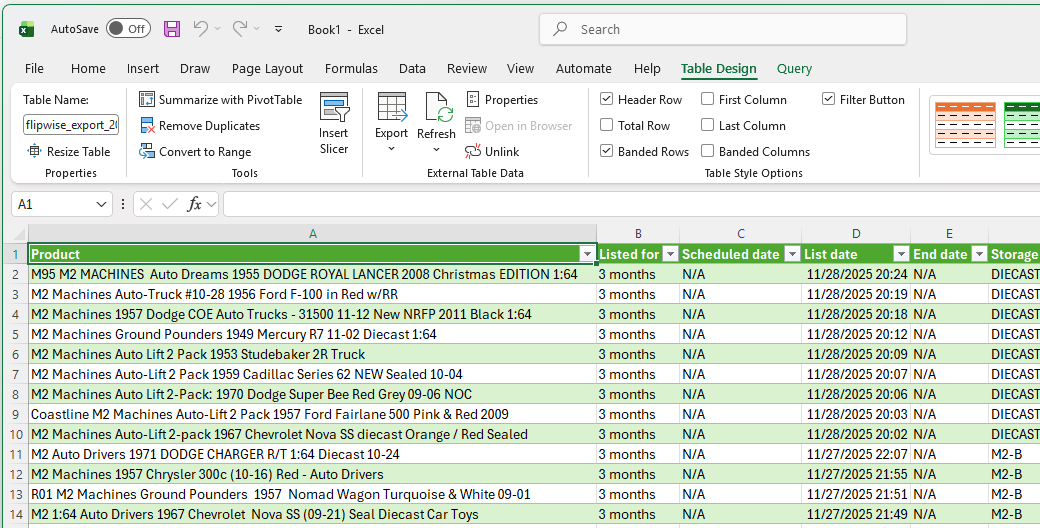
- Depending on your version of Excel, you may see a few questions or options, but you should be able to just leave everything as default. In the latest version, click "Load", and a formatted table is inserted into your spreadsheet with all of the rows and columns separated.
Opening CSV files in Google Sheets
If you do not have or wish to use Excel, Google Sheets is a great, free, online spreadsheet application that can also handle CSV files very easily. Here are the steps for importing into Sheets:
- Create a new Google Sheet by clicking "Blank Spreadsheet" if you are in Google Sheets, or "New->Google Sheets" if you are in Google Drive.
- Select "File", then "Import".
- Click "Upload" and either drag the CSV file into the window, or click Browse and find the file.
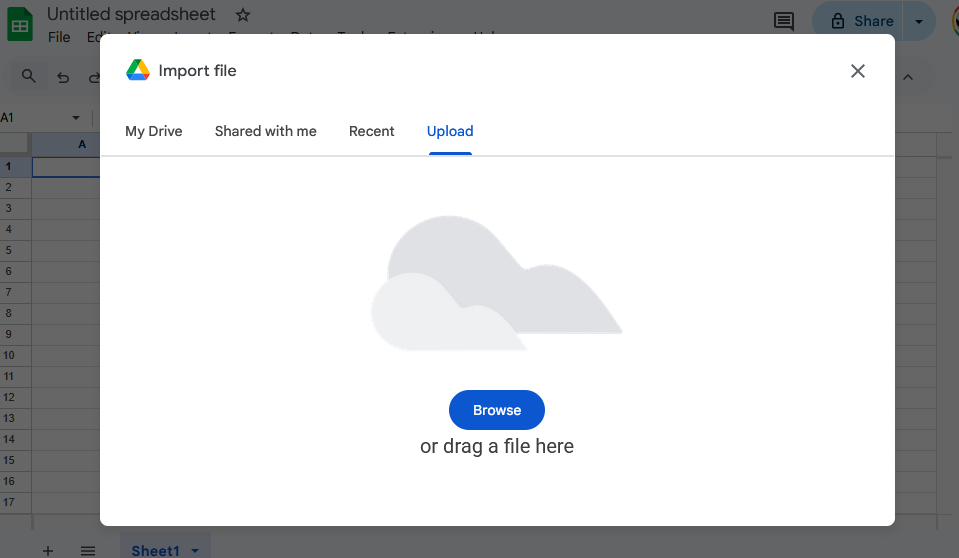
- Google will give you some options around where you want to put the data, but you can simply leave the default options and click "Import Data". The data will then be added to the sheet in rows and columns:
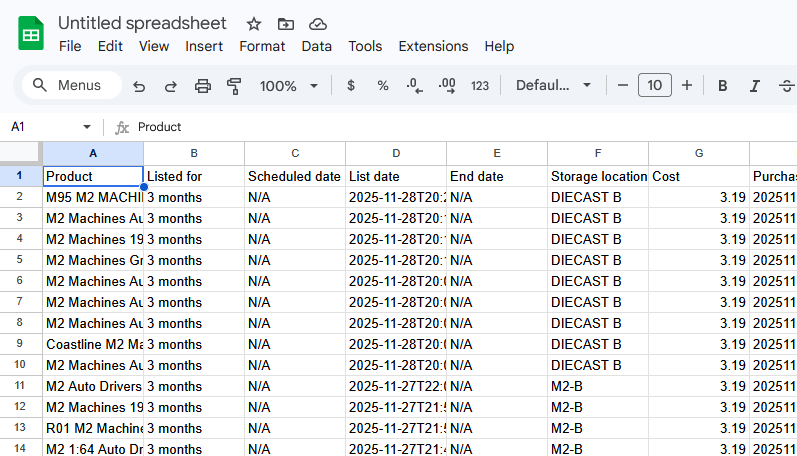
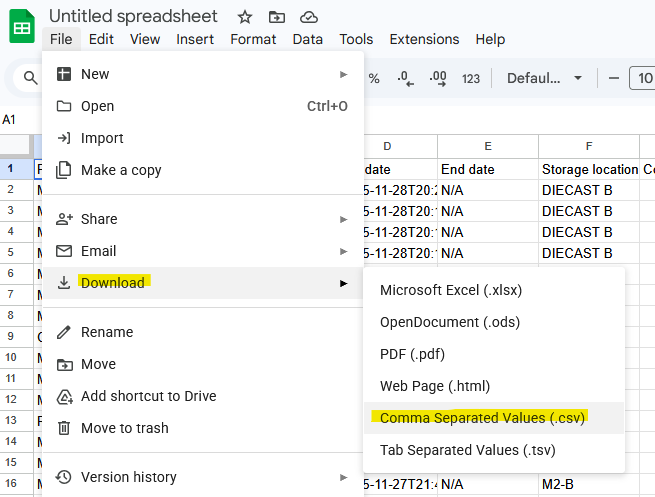
To save the data back out to a CSV file, click "File", "Download", "Comma Separated Values (.csv)". This will create a CSV file that represents everything in the current tab of your spreadsheet.